Art you drew and sounds you recorded can go straight into the game.
Studio's asset library takes them all at once.
- 01
Open the asset library from
+Tap the + next to the box and pick
Choose assets. On a computer it is theAdd assetsbutton under the box.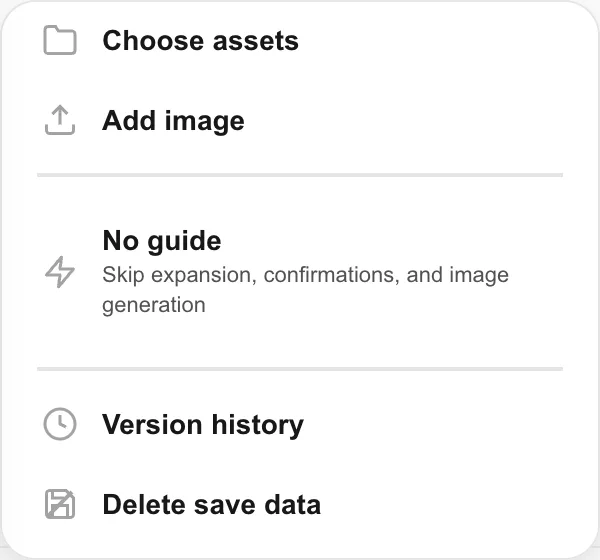
- 02
Switch to the
UploadtabMy AssetsandUploadsit at the top of the library that opens. TapUploadon the right.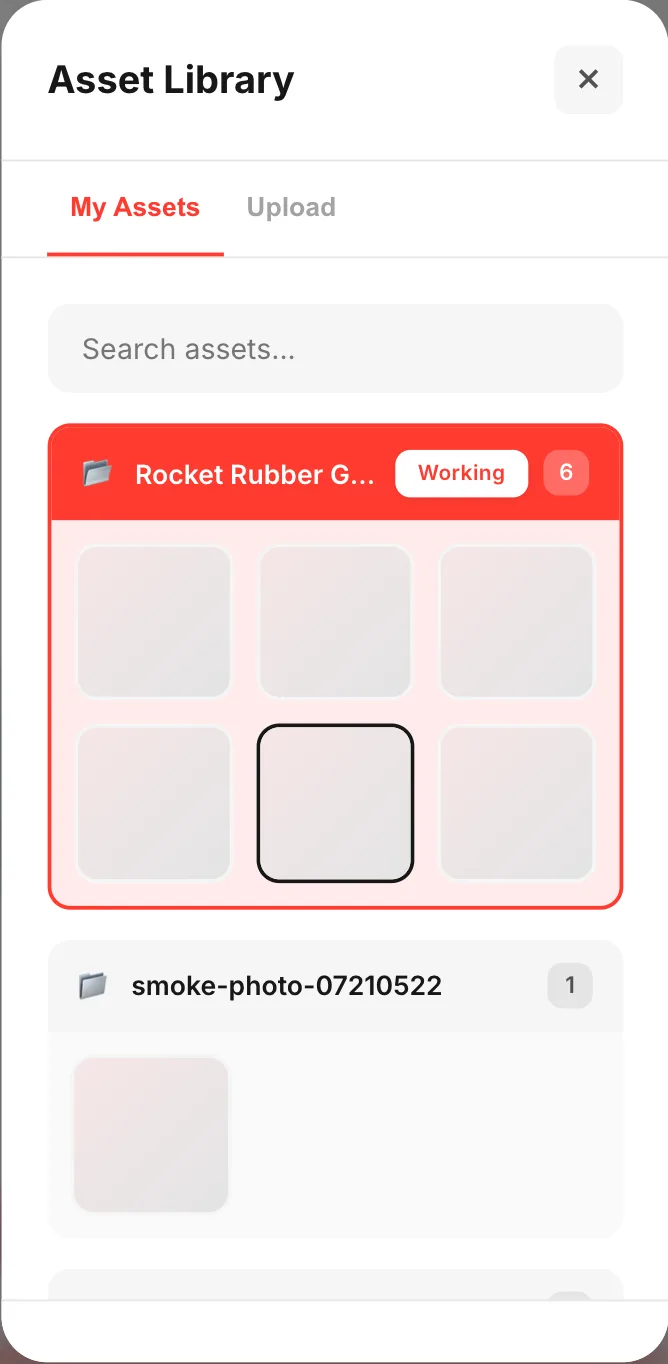
- 03
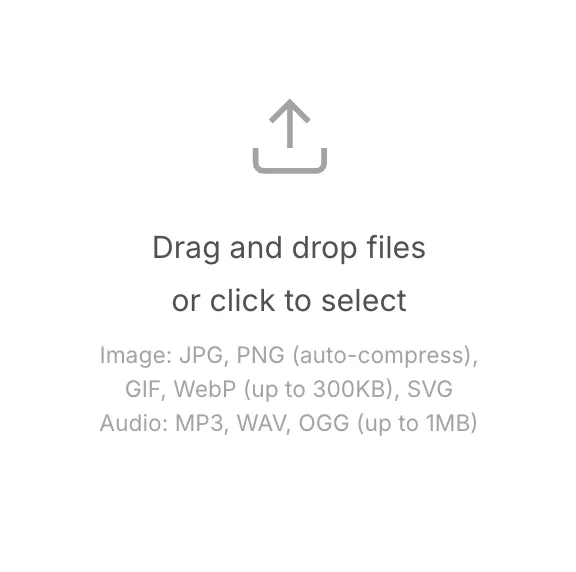
Drop files into the middle
Tap the frame to pick files. On a computer you can drag and drop instead. The formats and sizes it takes are written right under the frame.
- 04
Add tags and hit
UploadYour files line up below, and the × drops any you don't want.
Tags (comma separated)andDescription (optional)apply to everything you picked this time.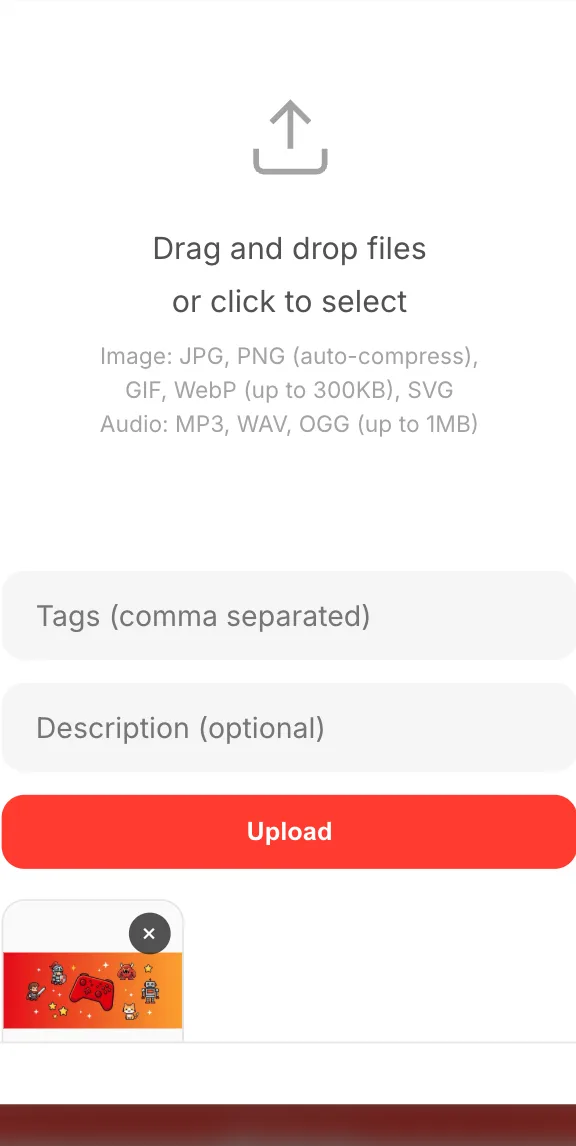
- 05
Point at them in the chat
Pick one from
My Assets, hitInsert, and it lands above the box as【1】. Then write "make 【1】 the main character" and send.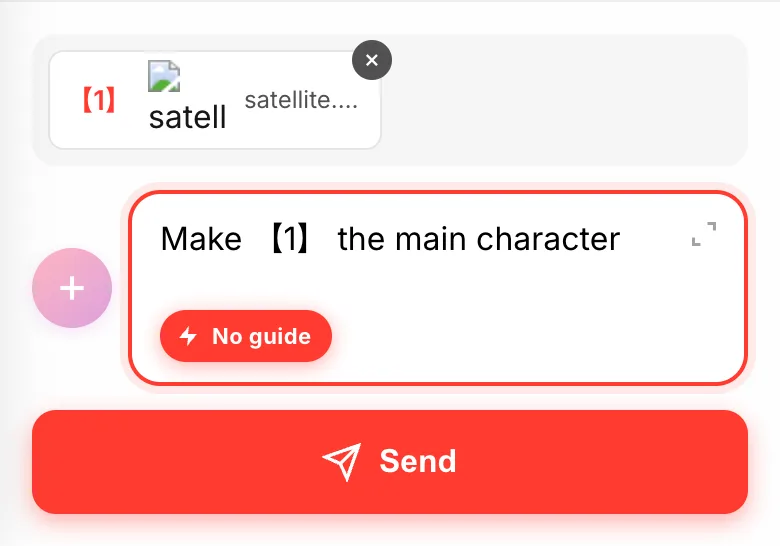
If something goes wrong
GIF and WebP are never shrunk automatically, so the animation survives. Over 300KB and you get an error right away. Cut the frames down, or export it as a PNG and add it again. JPG and PNG are shrunk for you however big they are.
If you want to use something now and can't be bothered with tags, Add image in the + menu is faster — the image you pick goes straight into the chat.
Tags and descriptions pay off later. Library search reads them as well as the file name, so rough words like "hero" or "sound effect" are plenty.