When someone plays or reacts, it lands in Notifications.
Anything you don't want can be switched off by type.
- 01
Open Notifications
Notificationsin the bottom menu.Socialholds reactions from people,Systemholds announcements from DreamCore. Unread ones are colored, and tapping one takes you there. The check at the top right marks everything read.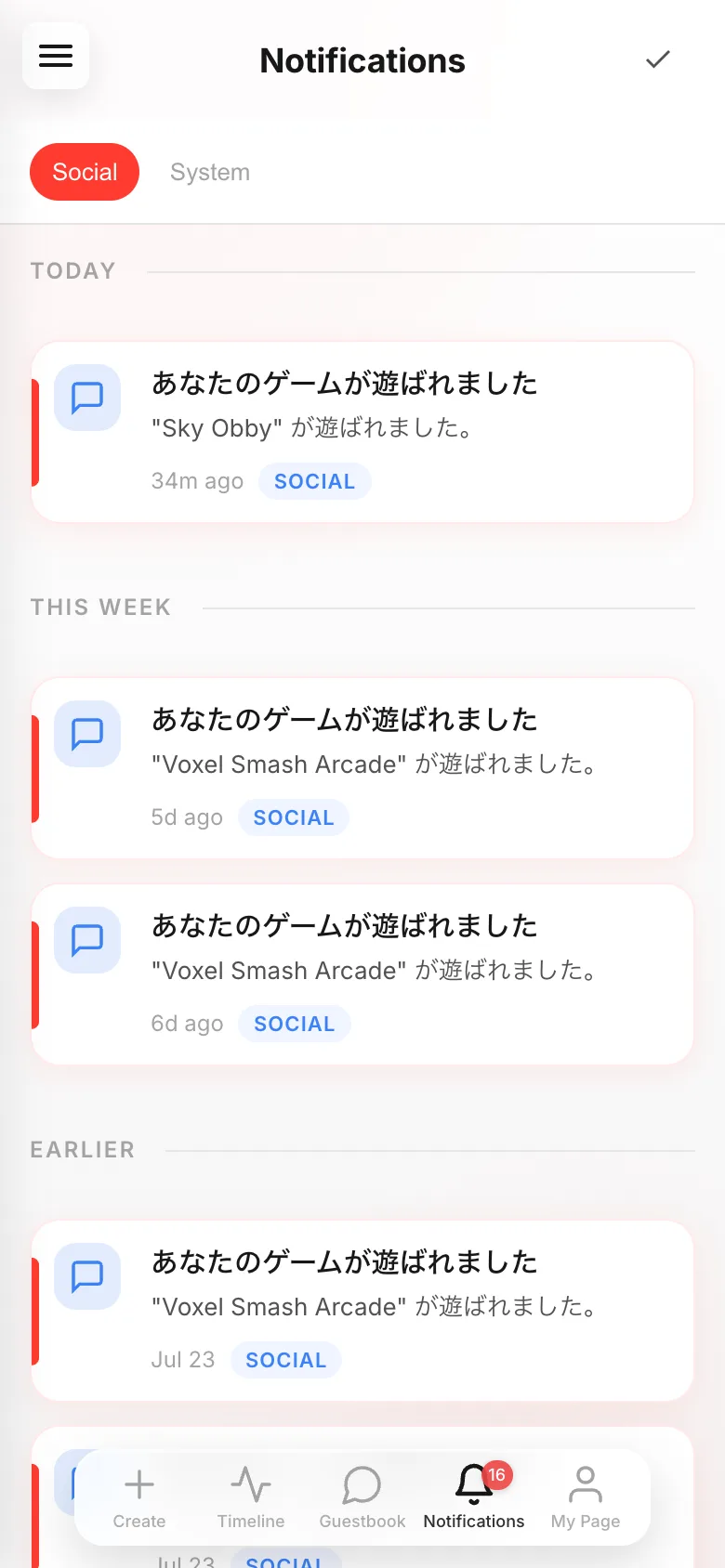
- 02
Switch off the ones you don't want
The
Notificationssection of Settings (the gear at the top right of My Page) has a switch per type. It saves as you tap. You can turn them all off, but keepingPlay activityon is worth it — catching the moment someone plays your game is a good feeling.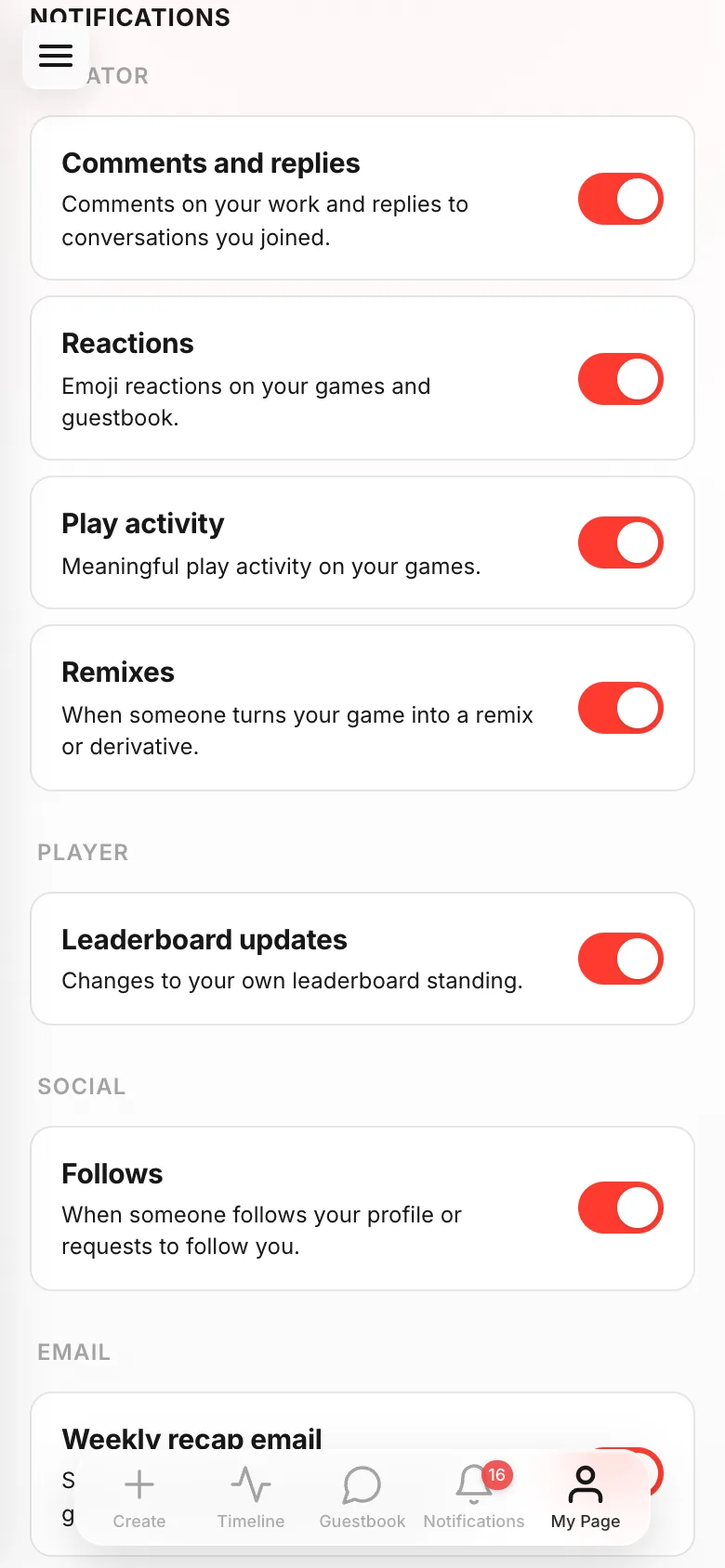
- 03
Decide about email
Keep going down the same screen for
EMAIL.Weekly recap emailonly comes in weeks something happened.Lifecycle emailscome once each at milestones like your first publish or first play.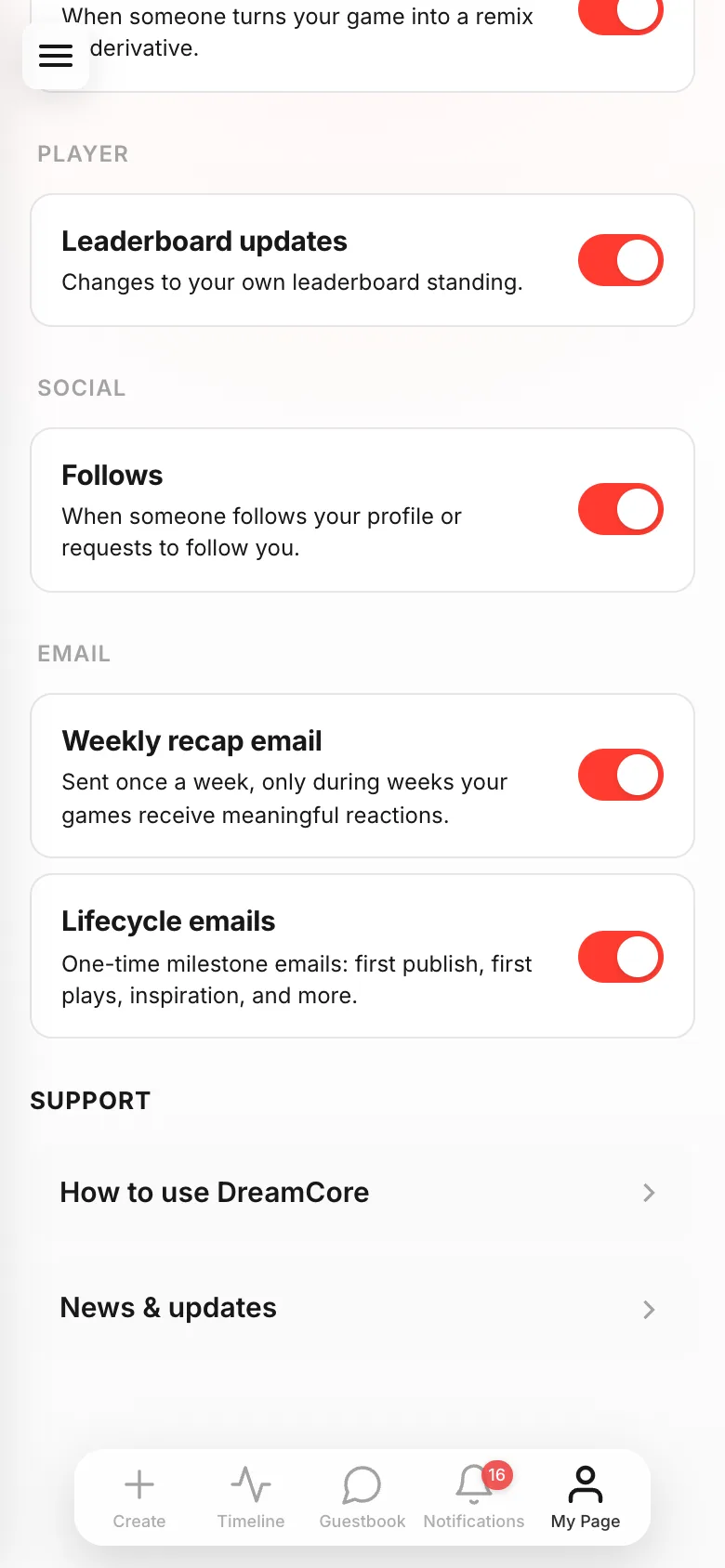
- 04
Get them on your phone
When you start making a game, a bar appears at the top saying
Enable notifications to know when your game is ready!. TapEnableand allow it in your device's prompt. Then you'll know it's done even if you wandered off to another app.
If something goes wrong
If nothing arrives, first check whether that type is switched off in the Notifications settings. If only phone notifications are missing, DreamCore's notifications are probably blocked in your device settings.
To go quiet on one game only, open that game's Share screen and choose Turn off play notifications for this game.