The same words can come back as different things.
These are Studio's two modes, and how to switch.
- 01
Do nothing and you get
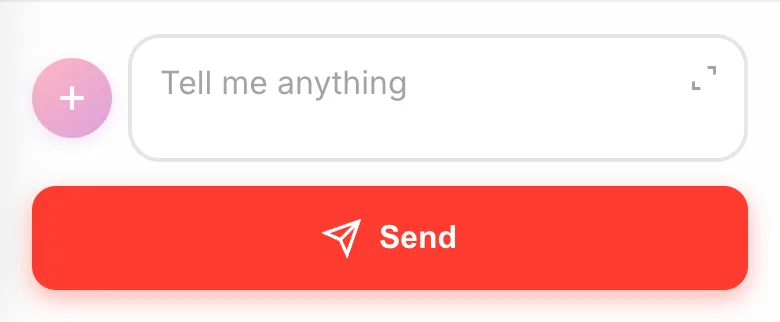
GuidedIt grows a one-line idea out, asks whether you want 2D or 3D, draws characters and backgrounds, and checks with you before it starts building. No badge on the box means you are here.
- 02
Switch to
No guidefrom+Tap the + next to the box and pick
No guide. On a computer, theGuidedbutton under the box flips it.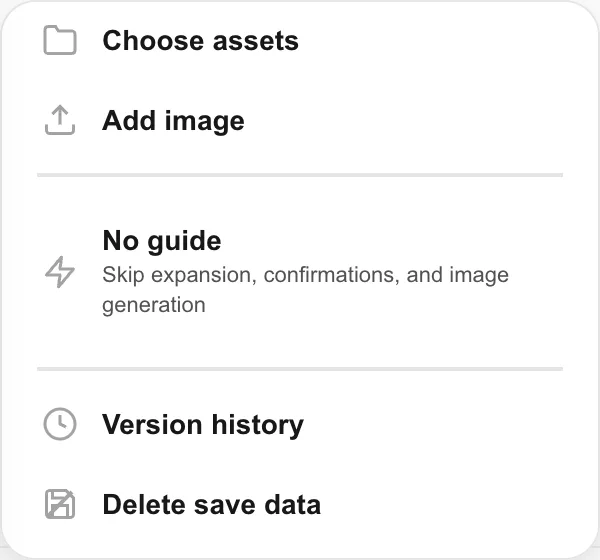
- 03
Three things get skipped
The menu says it plainly:
Skip expansion, confirmations, and image generation. What you wrote becomes the instruction, so the more detail you give, the closer it lands.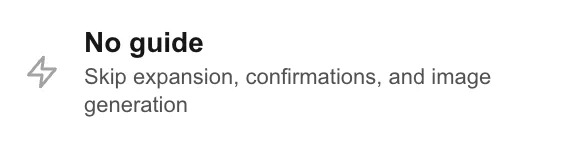
- 04
While the badge shows, you are in no-guide
A
No guidebadge sits inside the box. Tap it to go back. Studio remembers this per game, so it stays off until you turn it back on.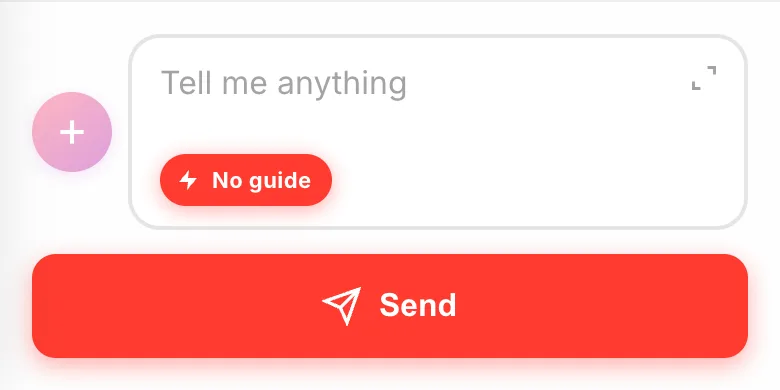
If something goes wrong
No pictures get made while No guide is on. Characters and backgrounds come out as shapes and gradients drawn in code. If you want a game with artwork, switch back to Guided, or hand over your own images from your asset library.
It will not ask about 2D or 3D either. Say nothing and you get 2D, so write "in 3D" yourself if that is what you want.