Art made earlier and files you brought in yourself all land here.
Pick one, drop it into the chat, and the game will use it.
- 01
Open the
Asset Libraryfrom+Tap the + next to the box and pick
Choose assets. On a computer it is theAdd assetsbutton under the box.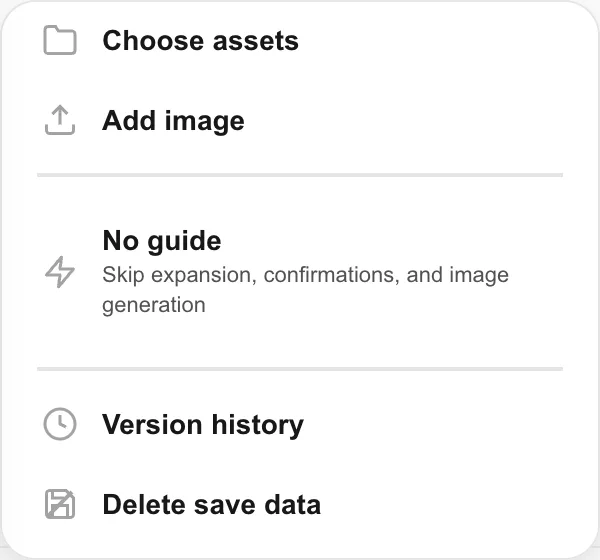
- 02
Look through
My AssetsOnly your own assets show up. They sit in folders by game, with the game you have open at the top. Anything not tied to a game lands in
Uncategorized.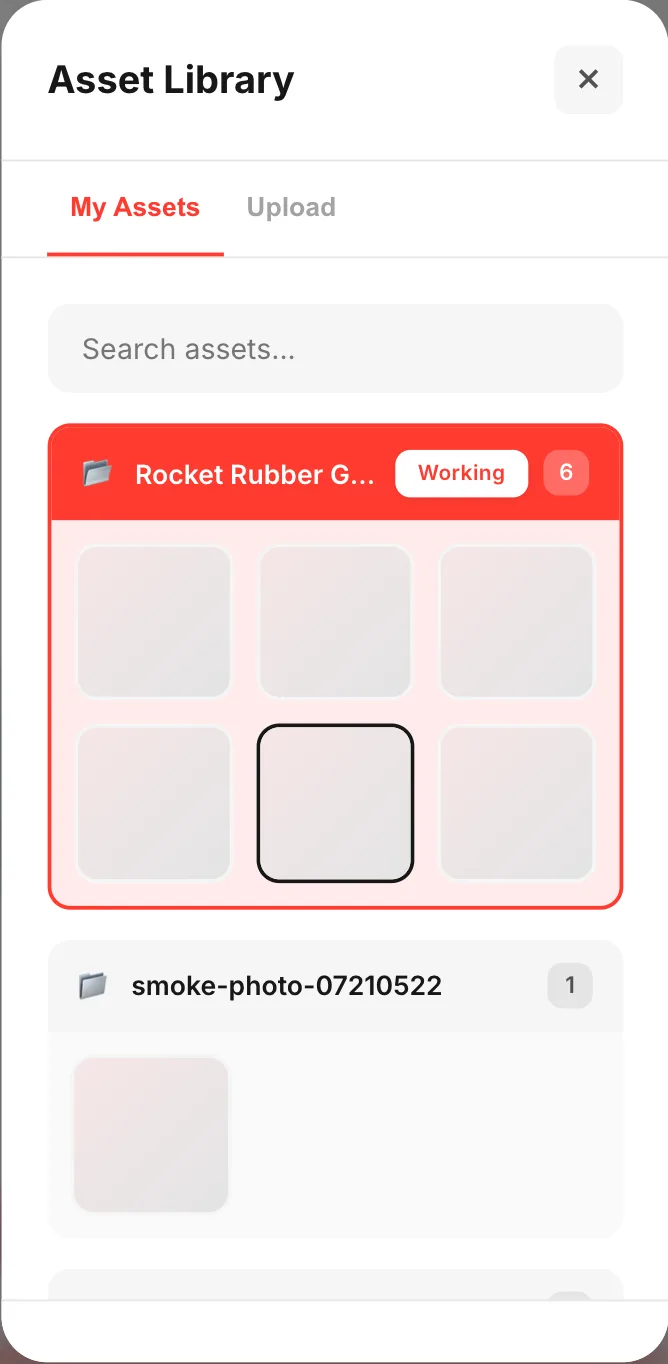
- 03
Pick one and hit
InsertTap what you want and
Insertappears at the bottom. Take as many as you like — it counts them, likeInsert (2). Pick a single image andEditshows up too, for cropping before you use it.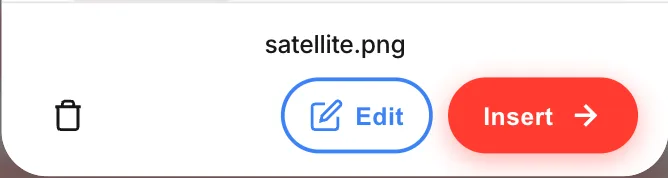
- 04
Call them by number
Whatever you insert lines up above the box as
【1】,【2】. Write "make 【1】 the main character" and there is no confusion about which one you mean.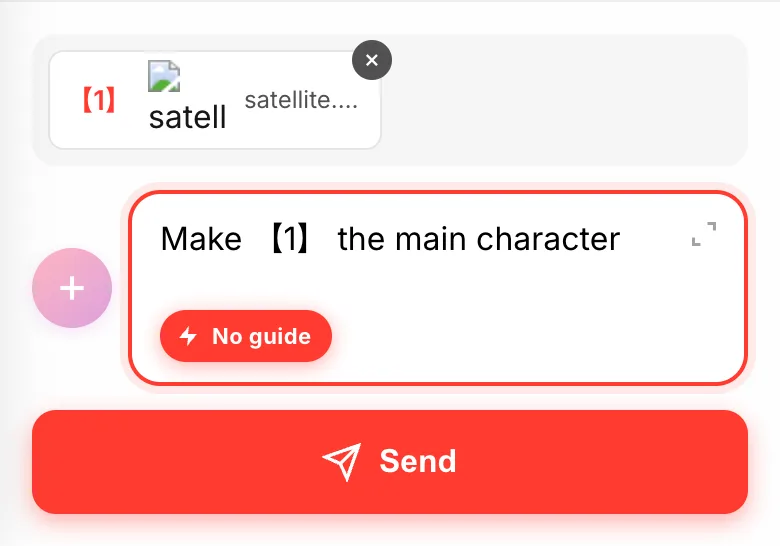
- 05
Bringing your own:
UploadThe
Uploadtab takes your own images and sounds. Big JPGs and PNGs get shrunk automatically. Anything you add stays in My Assets for your next game.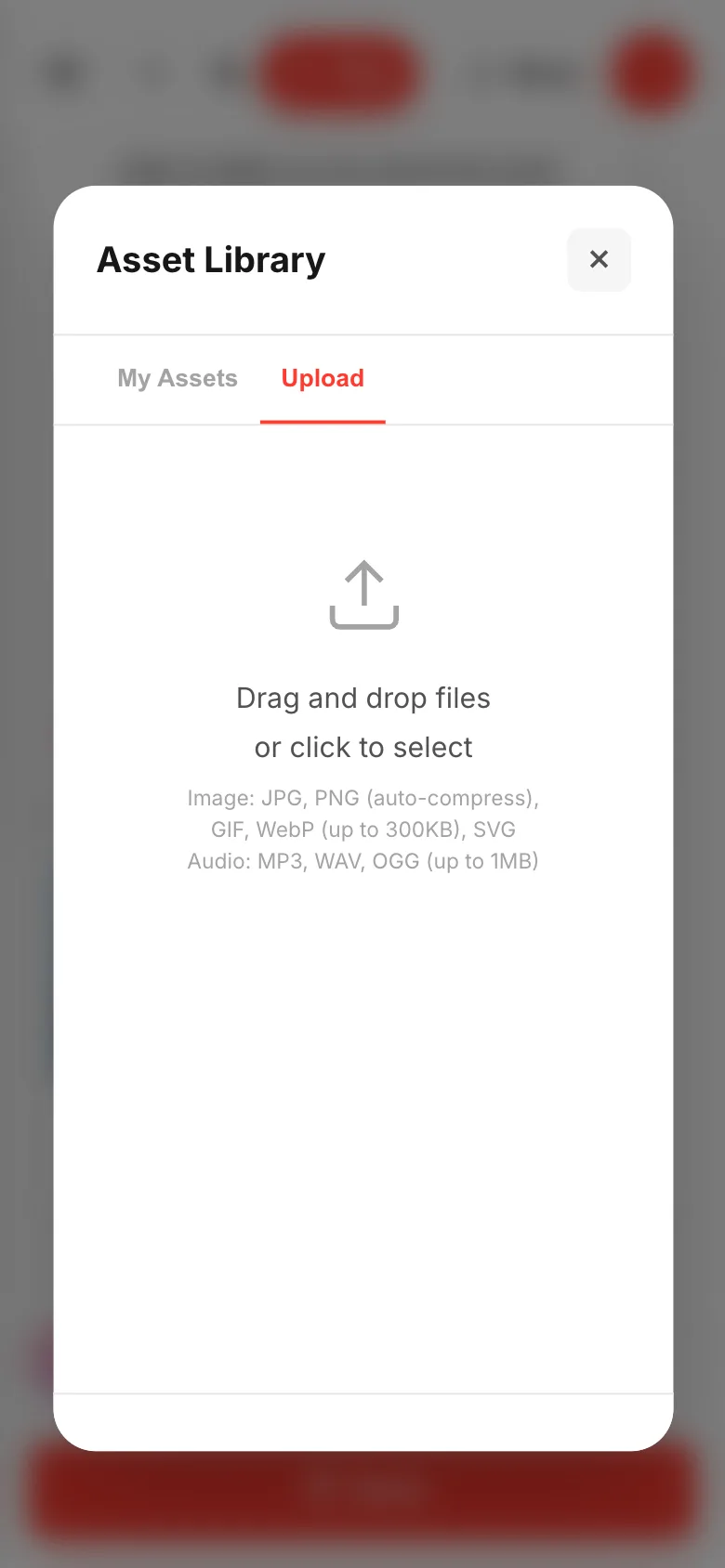
If something goes wrong
You can't find the one you want. The search box up top looks at more than file names — it also reads the tags and description you added at upload. While you are searching, the folders drop away and you get one flat list.
My Assets is empty. Only your own assets appear here. Making a game in Guided fills it with the art built along the way. In No guide no art is made, so nothing gets added.