A finished game goes to your friends without leaving Studio.
No exporting, no app. You send a link.
- 01
When it's done, a card appears
Let your friends play.shows up in the chat.Shareopens a sheet with the thumbnail and the URL. Plays and reactions show on the same card.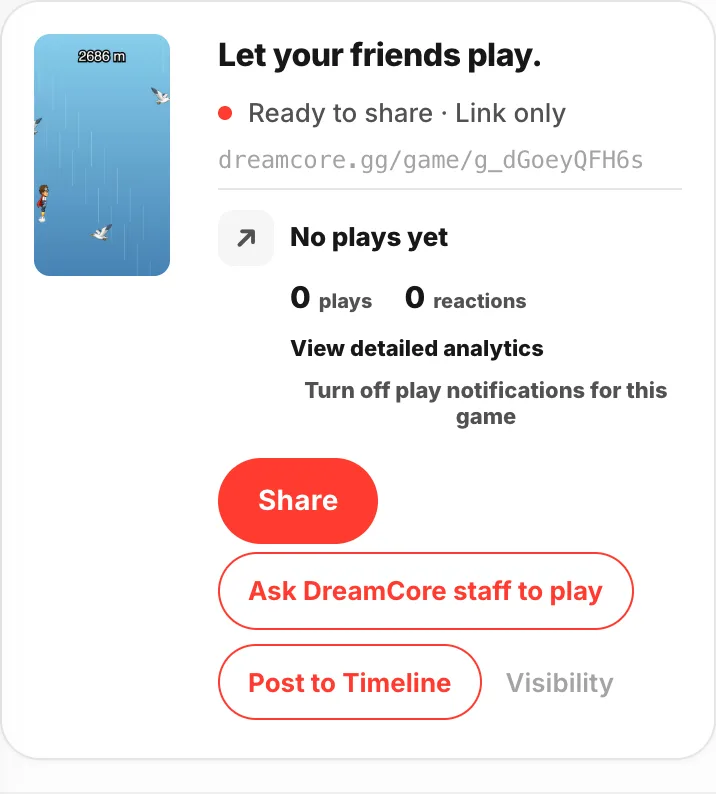
- 02
Edit game infofrom the share menuThe
∨next toSharein the header opens the menu.Open play pageshows you the exact screen your friends get.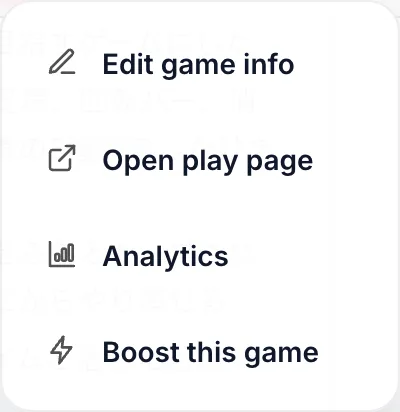
- 03
Fix the title
Leave it as a default name and nobody knows what the link is. You get 50 characters.
AIwrites a few options for you.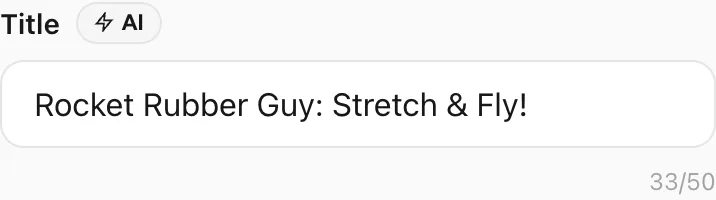
- 04
Pick a thumbnail
This is the first thing anyone sees when the link arrives.
Regeneratemakes another one,Uploadputs your own image there.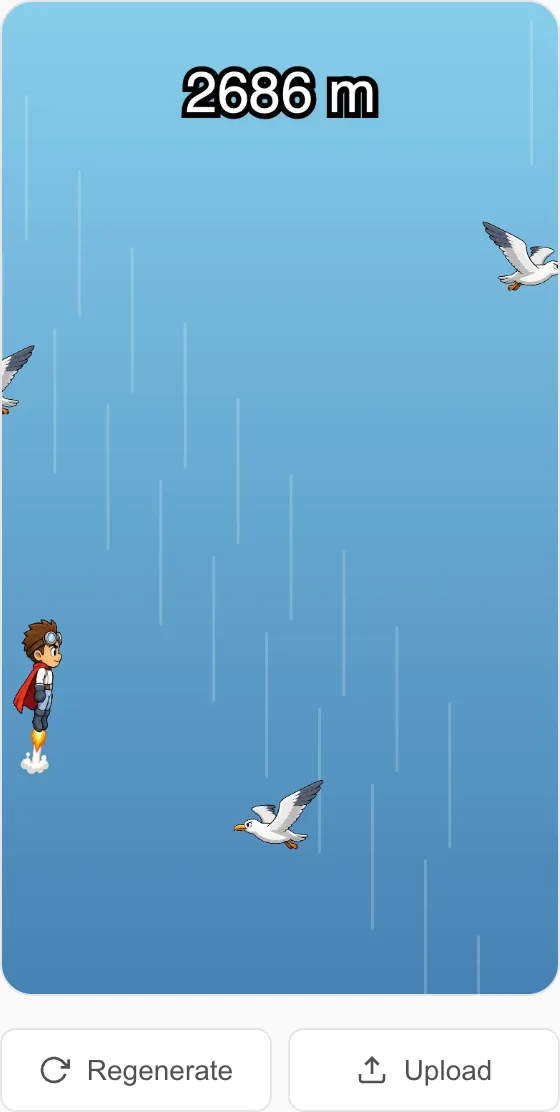
- 05
Decide who can play
Who can play?has three options. For friends only, useOnly people with the link. Then hitSave share settings.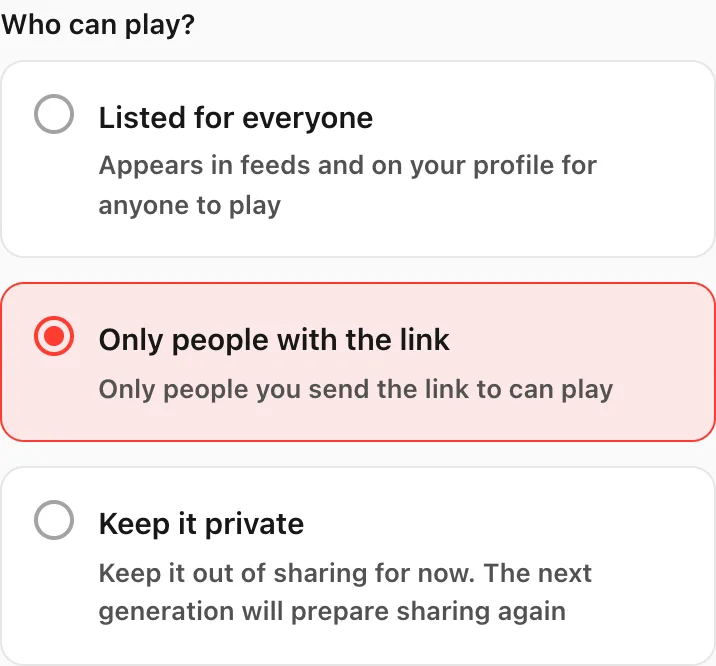
- 06
Decide if others can build on it
Set
Can others make from this?toAllowand people can start new games from yours.Don't allowleaves them playing only.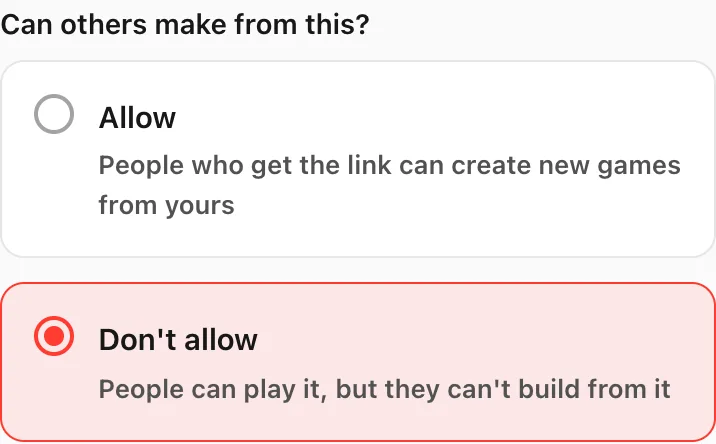
If something goes wrong
If the card says Share setup is stuck. Open game info to finish it., open the game info screen and check the share settings.
A game set to Keep it private goes back to shareable the next time you generate it.
Whoever opens the link needs no app. It plays on a phone or a computer as it is. Reactions and comments land in your notifications — take them back to Studio and use them.